Watch the setup video below and read through the following FAQ before contacting customer service with your inquiries.
Most questions about the OYO Coaching App are answered here. If you can’t find the information you are looking for here, we’ll be happy to answer your questions.
- DoubleFlex Black = Personal Gym LE
- DoubleFlex Black PRO = Personal Gym PRO
- Make sure that the sound is on in the video — in the upper right portion of your screen there is a small volume icon. Make sure that there is no slash through the speaker icon. If there is, press this button.
- Make sure that your phone / iPad’s sound is on — turn on the switch on the side of your device (location various per device).
Please note: the red pacing circle will not line up with the videos. Feel free to pace off the instructors in the videos as well.
Featured (Top Section):
- Scroll through the Featured Workouts by swiping left or right on the image
- Click to learn more information about a specific Featured Workout
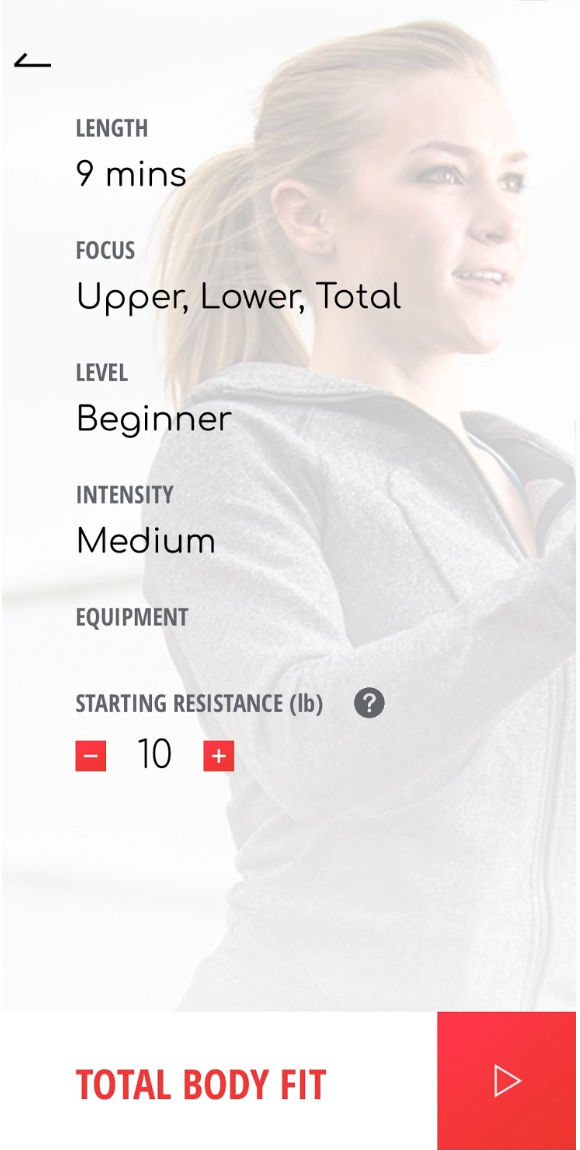
- Press the red play button in the lower right corner of the Workout Preview page to start the workout.
Workout Categories (Bottom Section):
Click one of the three workout categories at the bottom to see workouts that fit that category:
- 10 Week Challenge — these are the workouts for the OYO 10 Week Challenge. Be sure to start with Week 1, Day 1. There are 3 workouts per week of the Challenge.
- Strength & Shape — these are strength-based workouts designed to shape and sculpt your body.
- Strength & Cardio — these are cardio-based workouts designed to get your heart rate going.
Click the Explore Workouts button in the lower right to see all workouts and filter to the type you want.
Here is a screenshot of the Workouts screen:
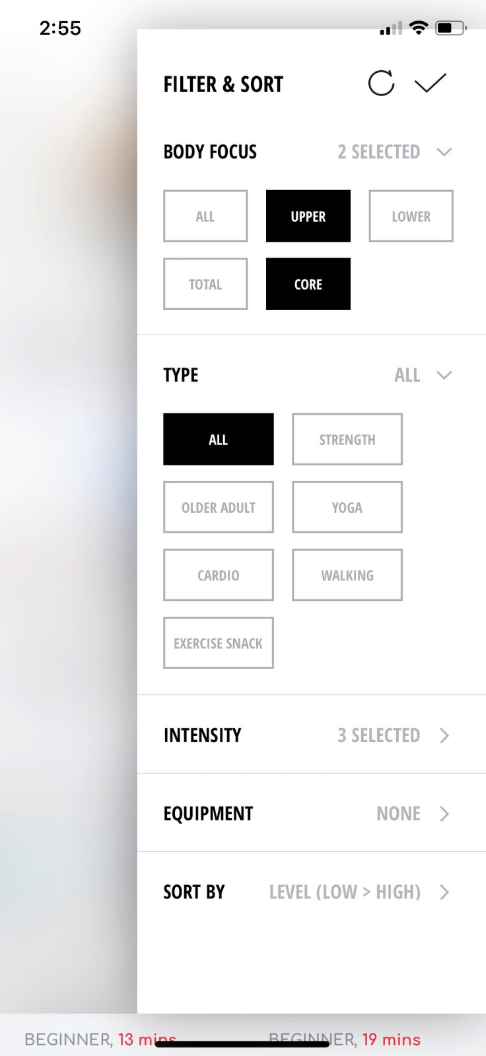
If you’d like to filter for specific types of workouts, do the following steps:
- Click the Filter icon in the upper right corner
- Select an area you’d like to filter (Body Focus, Type, Intensity and/or Equipment)
- When you select one of these, the section will expand to see the options.
- In the expanded section, make your selections.
- Note: you can select multiple options for each section and can filter using multiple sections at the same time (ex. Body Focus: Upper; Type: Strength; Intensity: Low)
- When you’ve made your selections, press the check mark at the top of the page. This will take you back to the Explore Workouts screen but with your filtered results.
To reset your selections, press the circle to the left of the check mark in the Filter & Sort menu.
Here’s a preview of the Filter & Sort menu:
- From the main screen, click the three vertical lines in the upper left corner.
- Select “My OYO Personal Gym”
- Select the style you have
- Click the check mark in the upper right corner.
Please note: changing the product from PRO to non-PRO units will affect the functionality of the Coaching App, but will not damage the device or the Coaching App.
For Kickstarter / Indiegogo backers, we have updated the branding of the DoubleFlex models, but the units are the same. Below are the equivalent unit names:
- DoubleFlex Black = Personal Gym LE
- DoubleFlex Black PRO = Personal Gym PRO
- From the main screen, click the three vertical lines in the upper left corner.
- Click on your name in the upper center of the screen
- Update your personal information or password
- Click the check mark in the upper right corner
If you don’t make any changes a popup will say “No Change to Submit.” To go back, press the back arrow in the upper left corner.
- From the main screen, click the three vertical lines in the upper left corner.
- Click “Tutorial Videos”
- Click which video you’d like to watch.
- When done watching that video, click the “X” in the upper left corner.
- When done watching the three videos, press the back arrow in the upper left corner.
Here’s a screenshot of the Let’s Get Connected screen:
Your PRO will indicate that it’s connected to the Coaching App by the green LED light at the bottom going from flashing to solidly lit.
If this does not happen from the PRO Connection Screen, you may be encountering one of a few problems. Here is a Troubleshooting list:
Check your PRO is awake indicated by the green LED flashing at the bottom.
- Shake your PRO — if the LED isn’t flashing, shake your PRO hard to wake it up. The green LED will begin to flash when awake.
- Plug in your PRO — if the green LED doesn’t start flashing when you shake it, then it may be in deep sleep mode. Plug in your PRO unit with micro-USB cable (included) to the bottom of your PRO with either a computer or wall socket.
Make sure you have a PRO unit selected.
- See the FAQ question “How do I change the type of DoubleFlex / Personal Gym unit linked to my Coaching App?”
- Make sure you have “OYO Personal Gym PRO” selected
Please do all of the above prior to contacting customer support. When reaching out to customer support please tell them explicitly that you have done these steps or else they will instruct you to this FAQ. Our app customer support email is: [email protected].
Another solution is to forward the Password Reset email to an account that you can access through web login.